Research project aimed to port Waydroid to Umvirt Linux From Scratch 0.2.4.
    chimp install lightdm
    cd /usr/share/blfs-systemd-units
    make install-lightdm
chimp install weston
chimp install waydroid
Get "*-vendor.zip" and "*-system.zip" files with same prefixes and unpack it.
Copy "vendor.img" and "system.img" files to "/usr/share/waydroid-extra/images" directory.
Note: At first try "lineage-20.0-20250809-MAINLINE-waydroid_x86_64-vendor.zip" and "lineage-20.0-20250809-VANILLA-waydroid_x86_64-system.zip". Then try other versions.
To check current Linux kernel configuration ulfs-kernel-config-checker can be used.
Clone ulfs-kernel-config-checker
git clone https://gitlab.com/Umvirt/ulfs-kernel-config-checker
Build it
    cd ulfs-kernel-config-checker
    make
Create link to current kernel config file
ln -s /usr/src/linux-6.16.1/.config config/config
At first check that current config is pass ULFS checks
./checkall amd64
If some checks failed you can fix configuration manually or use sample kernel config file "waydroid.config" shipped with Waydroid package.
File "waydroid.config" is failed some ULFS checks but works fine with Waydroid.
Then check current config for Waydroid support
./checker amd64-extra waydroid
You have to pass all checks:
CHECK: Waydroid kernel support

OK        CONFIG_BLK_DEV_LOOP                     y                   m/y
OK        CONFIG_ANDROID_BINDER_DEVICES           binder,hwbinder,vndbinderbinder,hwbinder,vndbinder
OK        CONFIG_NETFILTER_XT_TARGET_CHECKSUM     m                   m/y
OK        CONFIG_ANDROID_BINDER_IPC               y                   m/y
OK        CONFIG_NF_CT_NETLINK                    y                   y
OK        CONFIG_ANDROID_BINDERFS                 NULL                NULL
OK        CONFIG_PSI                              y                   y
OK        CONFIG_VETH                             y                   y
There are two options to make Linux kernel ready to run Waydroid:
Waydroid package is shipped with reference kernel config which known to work with Waydroid.
This option is rewrite current configuration.
Warrning: If you wish to keep current configuration drivers and settings you have to edit your configuration and use it.
Just copy %waydroid_kernel% to linux kernel directory (/usr/src/linux-6.16.1)
cp -v /sources/waydroid.config /usr/src/linux-6.16.1/.config
Go to linux kernel directory.
cd /usr/src/linux-6.16.1
To edit kernel file use command
make menuconfig
Also other editors is available. Check Linux kernel documentation.
Before building check that kernel config is configured correctly. This saves a time consumed by building and debugging.
Go to linux kernel directory.
cd /usr/src/linux-6.16.1
Build and install kernel
chimp kernel_build
Install kernel
chimp kernel_install
reboot
useradd -U -m user
Open file "weston.desktop" file in "/usr/share/wayland-sessions". Replace
Exec=weston
to
Exec=dbus-launch weston
Edit pulseaudio config (as root)
Open "/etc/pulse/daemon.conf" file. Replace
;exit-idle-time = 20
to
exit-idle-time = -1
Open "/etc/pulse/system.pa" file. Comment or delete line
load-module module-suspend-on-idle
Check that vendor.img and system.img is located in /usr/share/waydroid-extra/images
ls /usr/share/waydroid-extra/images
Init waydroid LXC container
waydroid init -f
Enable and run waydroid service
systemctl enable waydroid-container
systemctl start waydroid-container
or
systemctl enable --now waydroid-container
tip: To check waydroid-container status (as root) type
systemctl status waydroid-container
Check that memfd module for waydroid container is enabled in "/var/lib/waydroid/waydroid_base.prop" file
cat /var/lib/waydroid/waydroid_base.prop | grep memfd
You should get
sys.use_memfd=true
Create file "org.freedesktop.Notifications.service" in "/usr/share/dbus-1/services" directory:
cat > /usr/share/dbus-1/services/org.freedesktop.Notifications.service << "EOF"
[D-BUS Service]
Name=org.freedesktop.Notifications
Exec=/usr/libexec/notification-daemon
EOF
Software rendering is needed to launch Waydroid in Virtual Machines. To enable software rendering open "/var/lib/waydroid/waydroid.cfg" file and add
ro.hardware.gralloc=default
ro.hardware.egl=swiftshader
in "properties" section (end of file).
Use lighdm to login.
Tip: You can press [ctrl]+[alt]+[backspace] to exit.
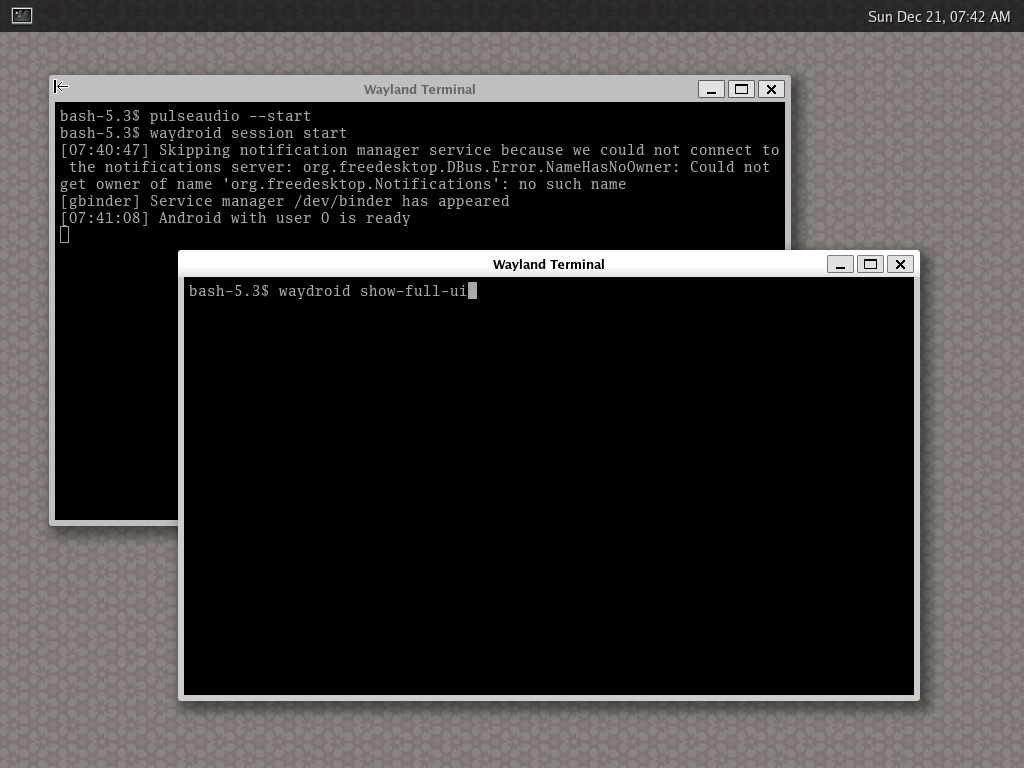
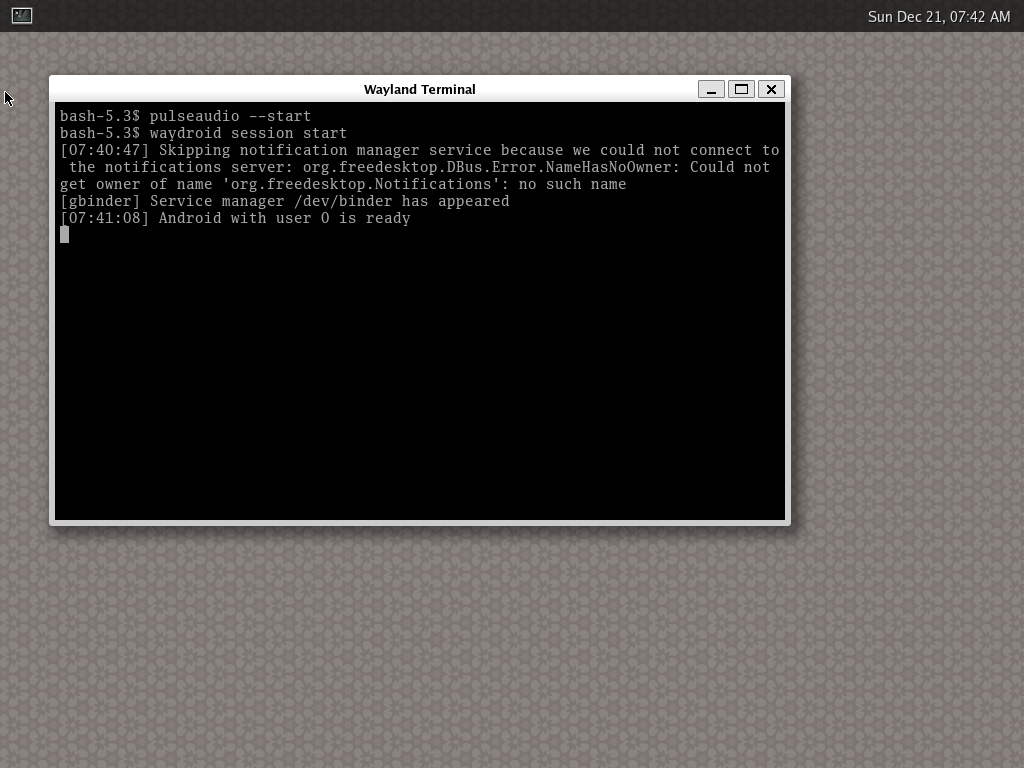
pulseaudio --start
waydroid session start
message "Android with user 0 is ready" should appear
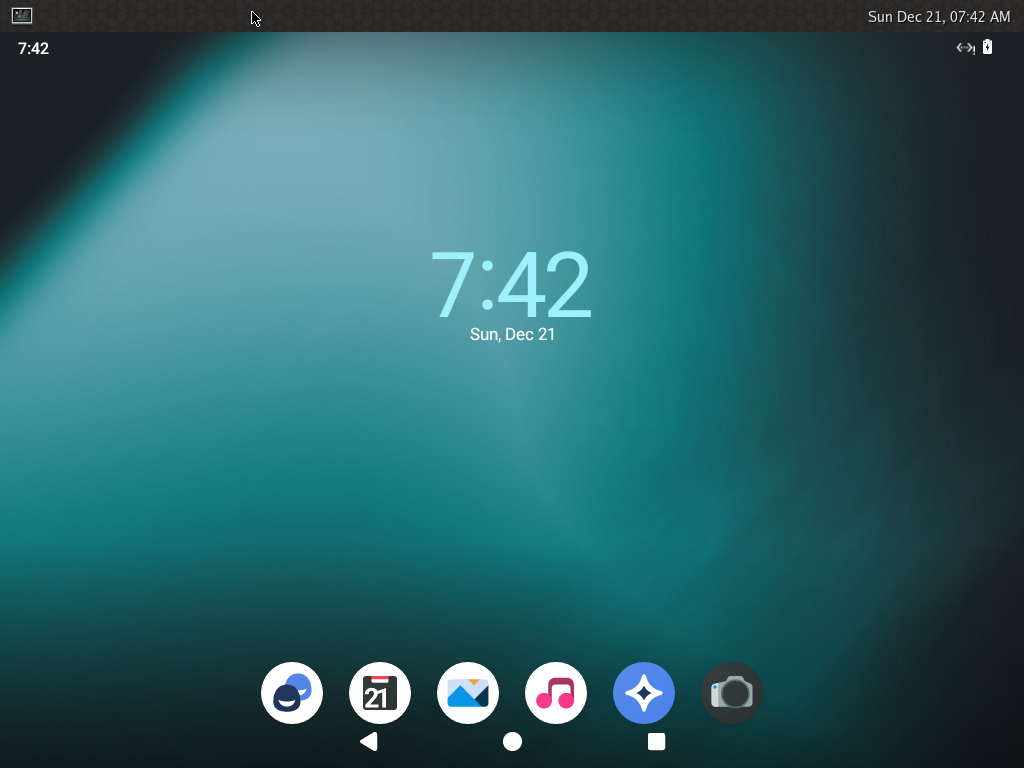
waydroid show-full-ui